Add a donation form to your GoDaddy Website Builder site
Add a donation form or donate button to GoDaddy Websites + Marketing using a two-line HTML-section embed, or link a hosted giving page on lower tiers.
Your campaign
Community fund
67% funded
Choose an amount
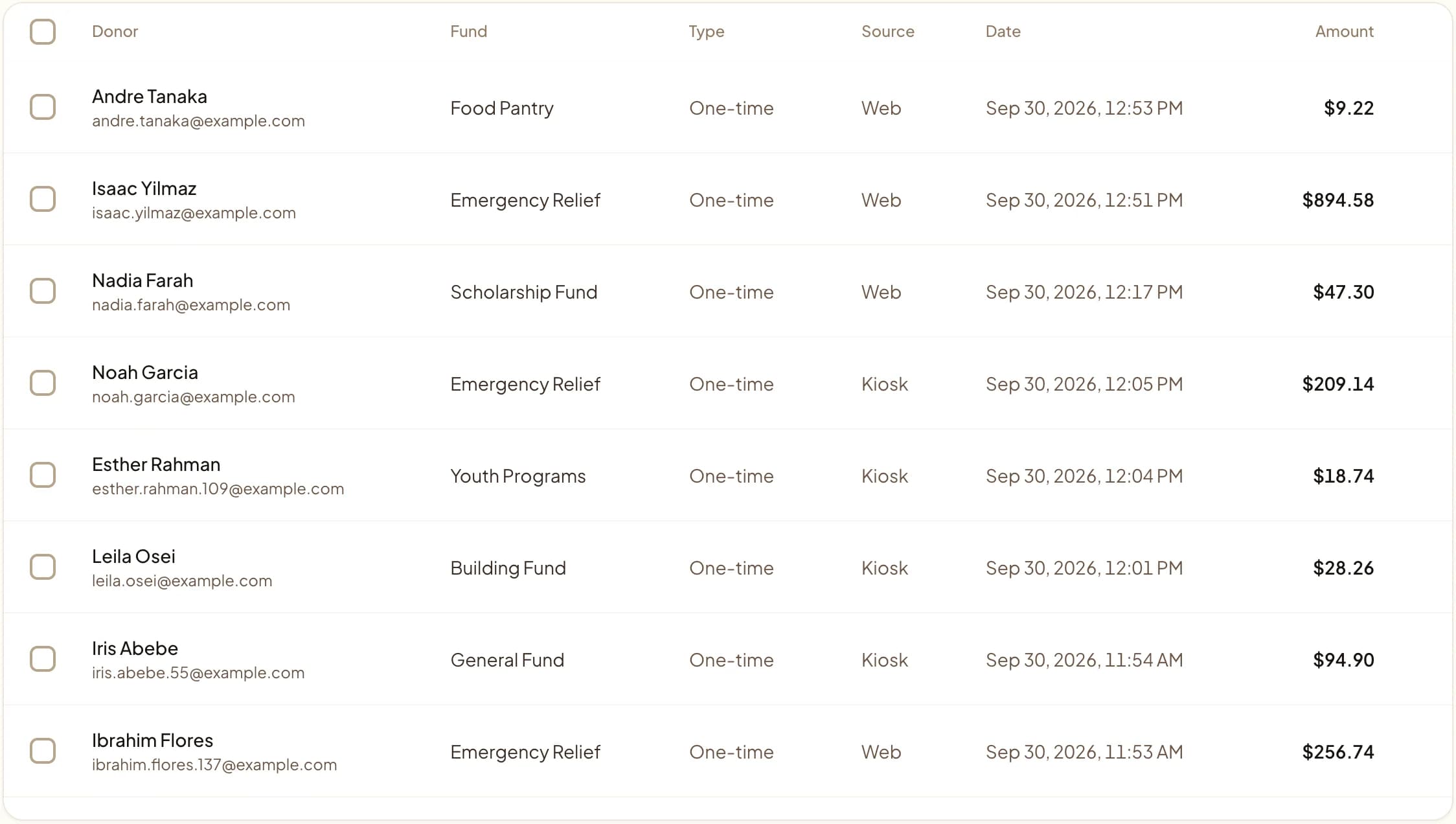
Web, kiosk, and QR gifts land in one dashboard.
Last updated July 2026 by Akif
Quick answer
To add a donation form to a GoDaddy Websites + Marketing site, add an HTML section to the page and paste Givebear's two-line embed code. If your plan does not offer the HTML section, add a button or menu link to your hosted Givebear giving page instead.
Key takeaways
- If the form looks boxed in or uses the wrong font, that is GoDaddy's iframe; the page explains the workaround.
- GoDaddy Managed WordPress is a different product, so follow the WordPress instructions there.
- Test a gift on a phone after publishing.
Who this is for
- Nonprofit and church web volunteers who built their site on the GoDaddy Websites + Marketing drag-and-drop builder and want a donate page without code
- Small organizations on GoDaddy's free or Basic tier where the HTML / custom code section is not available and a hosted link is the only path
- Anyone who inherited a GoDaddy site and needs a working donation form fast without hiring a developer or buying a plugin
- Organizations that run a GoDaddy website plus in-person giving and want the online form and the lobby kiosk reporting into one dashboard
How do you add the donation form in a GoDaddy HTML section?
From your GoDaddy product page, expand Websites + Marketing and select Manage next to your site to open the editor. Navigate to the page that should hold the form, hover where you want it, and select Add Section. In the section picker, search HTML, choose the HTML section, and select Add. Paste both lines (the data-givebear-embed div and the async script) into the Custom Code field; GoDaddy auto-saves as you type.
In the section's settings, give it a generous fixed Height in pixels rather than leaving it blank, since the iframe will not grow with the form (a height of 0 deletes the section). Use Preview to confirm the form renders, then select Publish to push it live. To switch styles later, change data-givebear-embed to data-givebear-card for suggested amounts or data-givebear-button for a modal trigger, and add data-button-text or data-accent-color to match your page.
GoDaddy's Websites + Marketing builder has no native nonprofit donation tooling, so a godaddy donation form means embedding one from a payment platform. Givebear's SDK is the same two lines on every site builder: there is no plugin to install and no theme to fight. The whole embed is a div plus an async script tag: <div data-givebear-embed data-organization-id="YOUR_ORG_ID"></div> followed by <script src="https://givebear.io/sdk/givebear.js" async></script>. The script mounts after the page loads and renders an inline form, a modal button (data-givebear-button), or a suggested-amount card (data-givebear-card) depending on which attribute you use.
On GoDaddy you do not paste that into a theme file. You add an HTML section to a page and drop the two lines into its Custom Code field. The catch is that GoDaddy renders every HTML section inside an iframe with a fixed height, so the form does not behave exactly as it would on an open HTML block. The sections below cover the click path, the iframe quirks, and what to do when your plan does not offer custom code.
One important distinction: GoDaddy sells two very different products. This page is for the Websites + Marketing drag-and-drop builder. If you are actually on GoDaddy Managed WordPress or cPanel hosting running WordPress, follow /integrations/wordpress-donation-form instead, because the embed goes in a block or widget rather than an HTML section. Either way the donor pays with cards, Apple Pay, or Google Pay through Stripe, and receipts and fund attribution are handled for you. Givebear charges a flat platform fee from 1.9% to 5.9% depending on plan (one rate online, at kiosks, and on memberships), plus Stripe card processing at cost, with no setup fee and no monthly minimum. For in-person giving at the same organization, the lobby donation kiosk shares the same funds and reporting as the form on your GoDaddy site.
The GoDaddy iframe gotcha (and how to dodge it)
GoDaddy wraps every HTML section in an iframe, and GoDaddy's own docs warn the embed may not be responsive even when the code is. Two things follow from that. First, the iframe has a fixed height, so a tall multi-step form or a data-givebear-button modal can be clipped because an overlay cannot escape the iframe bounds. Prefer data-givebear-embed or data-givebear-card with a comfortable fixed section height, and on phones leave extra vertical room.
Second, the SDK normally inherits the host page's fonts, but inside GoDaddy's iframe it inherits the iframe document instead, so the form will not automatically match your GoDaddy theme typography. That is cosmetic, not broken: set data-accent-color to align the button color with your brand, and accept that the body font may differ. If pixel-perfect matching matters more than staying on-page, the hosted Givebear giving page sidesteps the iframe entirely.
No HTML section? Use the hosted page, and don't confuse it with Managed WordPress
GoDaddy's custom code / HTML section is a paid Websites + Marketing feature; the free tier and some entry plans do not expose it. If Add Section has no HTML option, do not fight it. Add a standard GoDaddy button or link, point it at your hosted Givebear giving page, and you still get the full card, Apple Pay, and Google Pay checkout with receipts, just on a Givebear-hosted URL instead of inside your page.
Also confirm which GoDaddy product you actually have. Websites + Marketing is the drag-and-drop builder this page covers. GoDaddy Managed WordPress and cPanel-hosted WordPress are different: there the embed goes in a Custom HTML block or widget, so follow /integrations/wordpress-donation-form. The two-line snippet is identical, only the place you paste it changes.
Practical use cases
- Embed an inline donation form on a dedicated GoDaddy "Donate" page by adding one HTML section and pasting the two-line snippet.
- Drop a suggested-amount card (data-givebear-card) into a campaign section so visitors see preset gift amounts in context.
- On a free or HTML-restricted GoDaddy plan, style a normal GoDaddy button that links straight to your hosted Givebear giving page.
- Print a QR code that opens the hosted giving page for events and flyers, then pair it with the lobby kiosk for cash-free in-person gifts.
Key features
- Two-line SDK embed: one div, one async script, no GoDaddy plugin or marketplace app
- Runs inside GoDaddy's HTML section iframe on plans that expose custom code
- Hosted Givebear giving page as a clean fallback for free or HTML-restricted tiers
- Cards plus Apple Pay and Google Pay through Stripe Connect
- Swap data-givebear-embed for data-givebear-button or data-givebear-card, and set data-fund-id, data-campaign-id, or data-accent-color
- Automatic email receipts, with fund and campaign attribution in your dashboard

Common questions
How do I add a donation form to GoDaddy?
Why is the custom code / HTML option missing on my GoDaddy plan?
Why does my donation form look boxed in or use the wrong font on GoDaddy?
Does this work on GoDaddy Managed WordPress too?
Related reading
See it with your own funds.
Book a 30-minute walkthrough. No slides and no hard sell: we set Givebear up around how your organization already gives.
- Your funds, set up the way your treasurer reports them
- Where a kiosk would go, and what it costs
- The reports your board will actually see
Rather set it up yourself? Start free
Loading available times
Or open the booking page