Sync donations to QuickBooks Online and reconcile every payout
Connect Givebear to QuickBooks Online to post a journal entry for every payout, split by fund with fees and refunds broken out, so deposits reconcile in one click.
Last updated July 2026 by Akif
Quick answer
Connect Givebear to QuickBooks Online and it posts one journal entry per Stripe payout: the deposit to your bank account, gross income split by fund, fees as an expense, and ticket and membership income on their own lines. Because each entry equals a bank deposit, you can match it to the bank feed directly. Map funds, classes, and income categories to QuickBooks accounts once. QuickBooks sync is included on the Plus and Growth plans.
Key takeaways
- Refunds and adjustments post as their own lines in the payout entry.
- Restricted funds can map to their own income accounts.
- Sales tax collected on tickets can post to a liability account once mapped.
- A donation-report export cannot reconcile to deposits the way payout-level entries do.
Who this is for
- Nonprofit bookkeepers and treasurers who currently export Stripe or donation reports and hand-allocate each payout across funds in QuickBooks
- Finance teams at churches, mosques, and synagogues that need restricted-fund gifts (building, Zakat, missions) posted to separate income accounts automatically
- Organizations whose auditors expect every bank deposit to tie to a documented, balanced journal entry rather than a manual lump-sum allocation
- Admins running events and memberships who need ticket revenue, dues, and sales tax to land in the right accounts without separate bookkeeping
What does a synced payout look like in QuickBooks?
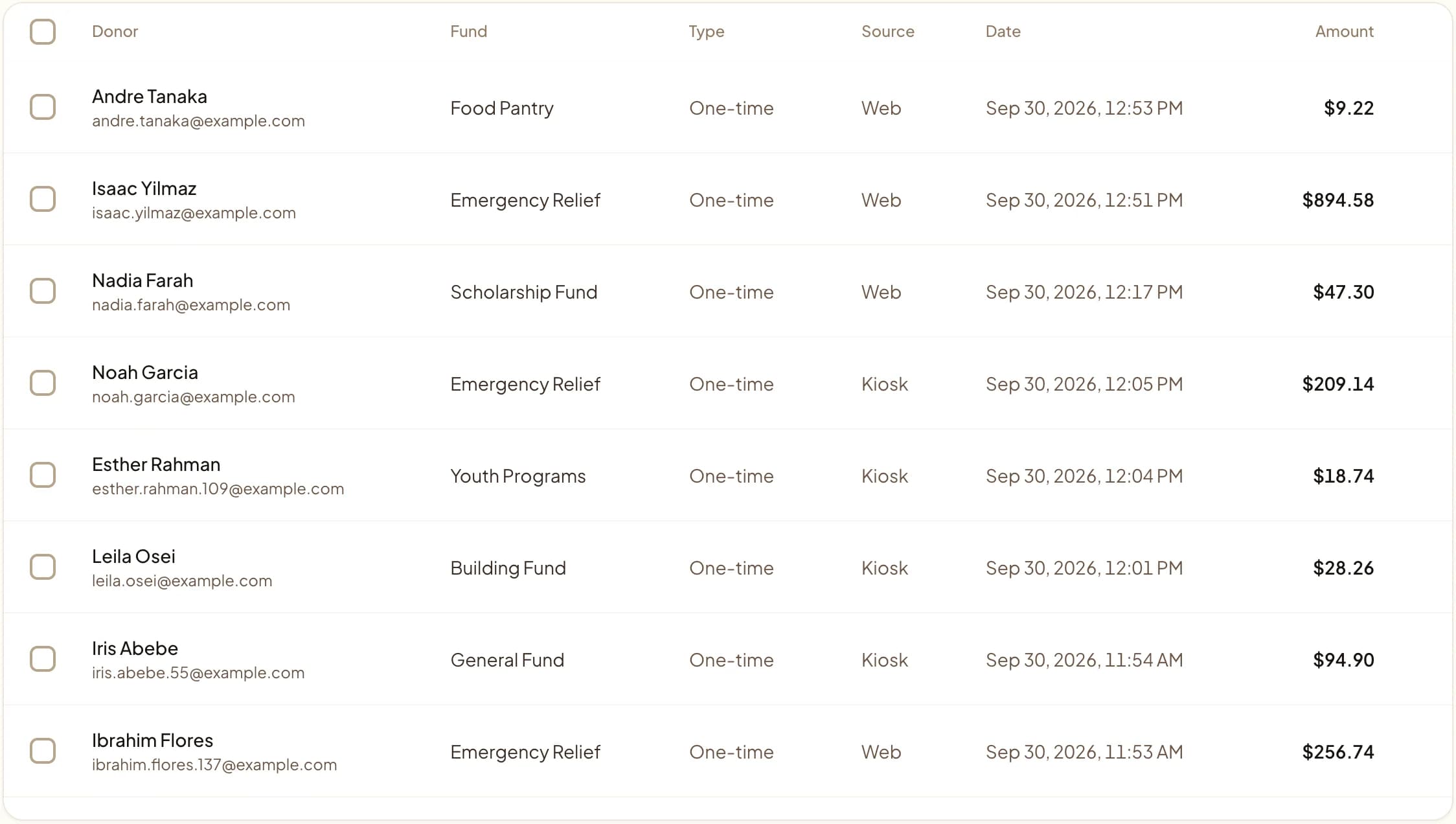
Each payout becomes a single JournalEntry in QuickBooks Online. The bank account is debited for the net amount that arrived on your bank feed, and a fee expense account is debited for the Stripe and Givebear fees withheld from that payout. On the credit side, gross giving posts to income accounts split by fund, so you can see at a glance how much of the deposit was general giving versus the building fund versus a restricted fund.
Because the entry already reflects fees and fund splits, reconciliation is a match rather than a reconstruction: you open the bank feed, find the deposit, and accept the journal entry Givebear posted for it. The private note on the entry references the originating payout, so an auditor tracing a deposit can follow it straight back to the gifts behind it.
Most nonprofit bookkeepers lose the same afternoon every month: a Stripe deposit lands on the bank feed as one lump sum, and someone has to work backward through dozens of gifts to figure out how much belongs to the general fund, how much to the building fund, and how much was processing fees. Givebear's QuickBooks Online integration does that allocation for you. When you connect QuickBooks under Settings and Integrations, Givebear posts a journal entry to QuickBooks Online for every Stripe payout automatically, so the deposit on your bank feed already has a matching, fully split entry waiting to reconcile.
The entry is built to balance the way an accountant expects. The bank line is debited for the payout's net amount, the exact figure that hits your bank feed. A fee expense line captures the Stripe processing and Givebear platform fee for each gift in that payout. Income is credited per fund, so general giving, the building fund, and a restricted Zakat or missions fund each post to their own account. Event ticket revenue, membership dues, and any sales tax collected on tickets route to the accounts you choose, and refunds are handled by flipping the affected lines so a partial-refund payout still balances.
You map funds to QuickBooks income accounts (and optional QuickBooks Classes) once, in settings, and every future payout follows that mapping. The sync is idempotent, so a payout is never double-posted, and a retry runs automatically if QuickBooks is briefly unavailable. Givebear charges a flat platform fee from 1.9% to 5.9% depending on plan (one rate online, at kiosks, and on memberships), plus Stripe card processing at cost, with no setup fee and no monthly minimum; both the platform fee and Stripe's processing land on the fee expense line, so the books show what giving actually cost.
How do you map funds, classes, and event income in QuickBooks?
In settings you choose a bank account, a fee expense account, and a default income account, then map each Givebear fund to the income account it should credit, with an optional QuickBooks Class for program reporting. Event tickets and membership dues can point at their own income accounts, and tickets that collect sales tax can credit a liability account so tax is never booked as revenue.
Anything left unmapped falls back safely to the default income account, so the entry always balances even before you finish fine-tuning. Update a mapping and every future payout follows the new rule; past entries are left as posted so your closed periods stay stable.
Why does this beat a donation-report export?
Exporting a donation report and re-keying or importing it into QuickBooks recreates the allocation work by hand and invites mismatches between what the report totals and what the bank actually received. Posting at the payout level instead means the figure in QuickBooks is the figure the bank deposited, net of fees, every time.
It also keeps donor management and accounting in their own lanes. Donor records, receipts, and recurring schedules live in Givebear, while QuickBooks holds the financial truth of fund balances, fees, and deposits. The integration is the bridge, so neither system has to pretend to be the other.
Practical use cases
- Reconcile each Stripe payout in one click because Givebear has already posted the matching split journal entry to QuickBooks Online.
- Keep restricted funds clean by mapping a Zakat, building, or scholarship fund to its own QuickBooks income account.
- Tag fund income with a QuickBooks Class so program-level reporting stays consistent across the books.
- Route event ticket revenue, membership dues, and collected sales tax to dedicated accounts so they never blend into general giving.
Key features
- One QuickBooks Online journal entry posted per Stripe payout, automatically
- Bank, fee expense, and per-fund income lines that balance to the net deposit
- Per-fund income account and QuickBooks Class mapping you set once
- Separate accounts for event tickets, membership dues, and sales tax
- Refund-aware entries that stay balanced on partial-refund payouts
- Idempotent posting with an automatic retry when QuickBooks is briefly unavailable

Common questions
How do I sync donations to QuickBooks with Givebear?
Does Givebear sync each individual donation or each payout?
Can I keep restricted funds in separate QuickBooks accounts?
What happens to refunds in the QuickBooks entry?
Related reading
See it with your own funds.
Book a 30-minute walkthrough. No slides and no hard sell: we set Givebear up around how your organization already gives.
- Your funds, set up the way your treasurer reports them
- Where a kiosk would go, and what it costs
- The reports your board will actually see
Rather set it up yourself? Start free
Loading available times
Or open the booking page