Add a donation form to your Shopify store, no app to install
Add a Shopify donation form or donate button with two lines of code, no app and no $1-product hack. It mounts in a Custom Liquid block or a hosted giving page.
Your campaign
Community fund
67% funded
Choose an amount
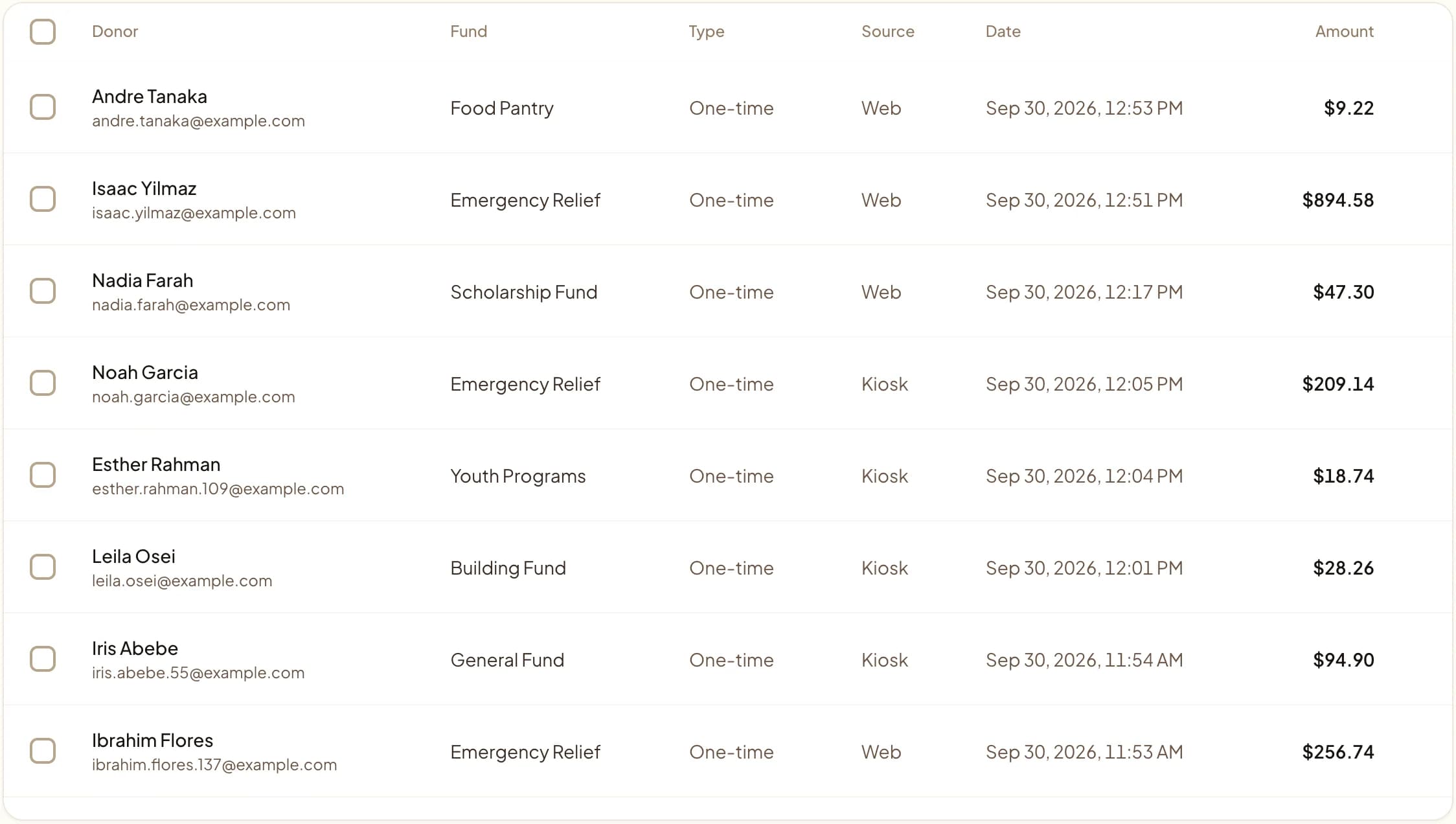
Web, kiosk, and QR gifts land in one dashboard.
Last updated July 2026 by Akif
Quick answer
To add a donation form to Shopify, open the page in the theme editor, add a Custom Liquid block, and paste Givebear's two lines of code. No Shopify app is needed, and donations stay donations: they do not pass through Shopify checkout as a fake $1 product, so your catalog and sales reports stay clean.
Key takeaways
- You can also link to a hosted Givebear giving page from a menu or button.
- Donors get a donation receipt, not an order confirmation.
Who this is for
- Nonprofits and faith organizations running their main website on Shopify who want real gifts without a $1-product workaround
- Shopify merchants on Basic, Shopify, or Advanced plans who cannot customize native checkout and need a separate, reliable giving flow
- Store owners and theme developers who want a two-line Custom Liquid embed instead of yet another recurring App Store subscription
- Charities that sell merch alongside fundraising and need donations kept out of inventory, sales tax, and order reporting
How do you add a Custom Liquid donation block on a Shopify page?
From your Shopify admin, open Online Store, then Themes, and click Customize on your live Online Store 2.0 theme (Dawn or any 2.0 theme works). Use the page selector at the top of the editor to open the page that should hold the form, or create one first under Online Store, then Pages, then Add page. In the left sidebar click Add section or Add block and choose Custom Liquid from the list. This block accepts raw HTML and external scripts, which is exactly what the embed needs.
Paste these two lines into the Custom Liquid box, then click Save: <div data-givebear-embed data-organization-id="YOUR_ORG_ID"></div> followed by <script src="https://givebear.io/sdk/givebear.js" async></script>. Replace YOUR_ORG_ID with the UUID from your Givebear dashboard. The script is async and mounts after the storefront DOM loads, so the form appears in place and inherits your theme fonts. Swap data-givebear-embed for data-givebear-button or data-givebear-card to change the shape, and add data-fund-id or data-accent-color to target a fund or match your palette.
A Shopify donation form does not need an App Store subscription or a theme-code rewrite. Givebear's SDK runs on every host site, so there is no feature gap on Shopify: the same two-line embed that powers giving on any other platform mounts cleanly inside an Online Store 2.0 theme. You paste one div with data-givebear-* attributes and one async script tag, hit Save, and the form renders where you placed it, inheriting your theme's fonts and width.
On Shopify the embed has two natural homes. The fastest is the built-in Custom Liquid block, which you drop onto any existing page (your About page, homepage, or a campaign page) straight from the theme editor. The cleaner long-term option is a dedicated giving page built on a custom page template, linked from your main menu as a real /pages/donate destination. Both run the exact same two lines, and crucially neither one models the gift as a product or variant, so a donation never touches your inventory, shipping, or tax logic.
That separation matters more on Shopify than on most builders. Native checkout is locked on Basic, Shopify, and Advanced plans, and the old Additional Scripts and checkout.liquid hooks are being retired for non-Plus stores, so trying to attach a gift to the cart or thank-you page is a dead end. A Givebear donation is its own flow with its own receipts, fund routing, and donor record, which also avoids the well-known $1-product and round-up-app hacks that quietly corrupt your order counts and conversion reports.
Why is a donation not a Shopify product or a checkout add-on?
Shopify's native checkout is locked on Basic, Shopify, and Advanced plans, and the Additional Scripts field plus checkout.liquid are being retired for non-Plus stores, with checkout customization moving to Plus-only extensibility. That means you cannot reliably bolt a gift onto the cart, checkout, or thank-you page. A Givebear donation is deliberately a separate flow, not a Shopify product or variant, so it sits entirely outside that locked surface.
Modeling a gift as a $1 product is the other trap. It drags the donation through inventory counts, shipping rules, and tax-as-merchandise logic, inflates your order and conversion numbers, and can even trigger sales-tax collection on a charitable gift. Keeping giving in Givebear means automated receipts, fund routing, and a donor record that stays out of your product catalog and order ledger. Givebear charges a flat platform fee from 1.9% to 5.9% depending on plan (one rate online, at kiosks, and on memberships), plus Stripe card processing at cost, with no setup fee and no monthly minimum, and you can let donors choose to cover the processing.
Custom Liquid block versus a dedicated giving page template
For a quick add, drop the Custom Liquid block onto an existing page so the form appears inline next to your story, photos, or appeal copy. This is ideal when the page already carries fundraising context and you just want the gift to complete on the same screen. The same two lines work whether the block sits on your homepage, an About page, or a seasonal landing page.
For a permanent destination, create the page under Online Store, then Pages, then in the theme editor assign it a custom template such as page.donate and add the Custom Liquid section to that template. Link it from your menu under Navigation so donors reach a clean /pages/donate URL. If your theme or store policy blocks custom scripts, skip the block entirely and point a menu button at a hosted Givebear giving page instead: both channels report to one ledger, so nothing is lost.
Why skip round-up apps and the $1-product hack on Shopify?
Shopify round-up apps add a spare-change prompt at checkout, but that now depends on checkout extensibility gated to Shopify Plus, and it only captures change from people who are already buying something. It does nothing for a supporter who arrives only to give, and it gives you no control over fund, recurrence, or receipt language.
A standalone Givebear form lets a donor pick a real amount, choose a restricted fund, set up a recurring monthly gift, and pay with Apple Pay, Google Pay, or a card through Stripe, none of which a round-up prompt offers. For in-person giving, pair the embed with a lobby donation kiosk so foyer and storefront gifts land in the same donor records and reporting as your online form.
Practical use cases
- Add an inline donation form to your About or campaign page through a single Custom Liquid block.
- Publish a dedicated /pages/donate giving page on a page.donate template and link it from your main navigation menu.
- Put a Donate button in the header (data-givebear-button) that opens the giving modal without sending shoppers off-store.
- Render a fund-restricted card (data-givebear-card with data-fund-id) for a building campaign or relief appeal.
Key features
- Two-line embed with no Shopify App Store install and no theme-code editing
- Drops into any Online Store 2.0 theme through the built-in Custom Liquid block
- Three widget shapes: data-givebear-button, data-givebear-card, and inline data-givebear-embed
- Cards plus Apple Pay and Google Pay through Stripe
- data-fund-id and data-campaign-id route gifts without creating a Shopify product or variant
- Hosted Givebear giving page as a fallback for locked-down or code-restricted themes

Common questions
How do I add a donation form to Shopify?
Do I need a Shopify app to take donations?
Can I add the donation form to Shopify checkout?
What does Givebear cost to run on Shopify?
Related reading
See it with your own funds.
Book a 30-minute walkthrough. No slides and no hard sell: we set Givebear up around how your organization already gives.
- Your funds, set up the way your treasurer reports them
- Where a kiosk would go, and what it costs
- The reports your board will actually see
Rather set it up yourself? Start free
Loading available times
Or open the booking page