Add a donation form to your Weebly or Square Online site
Add a donation form to Weebly or Square Online by pasting two lines into the Embed Code element: no plugin, plus restricted funds, recurring gifts, and fund-named receipts.
Your campaign
Community fund
67% funded
Choose an amount
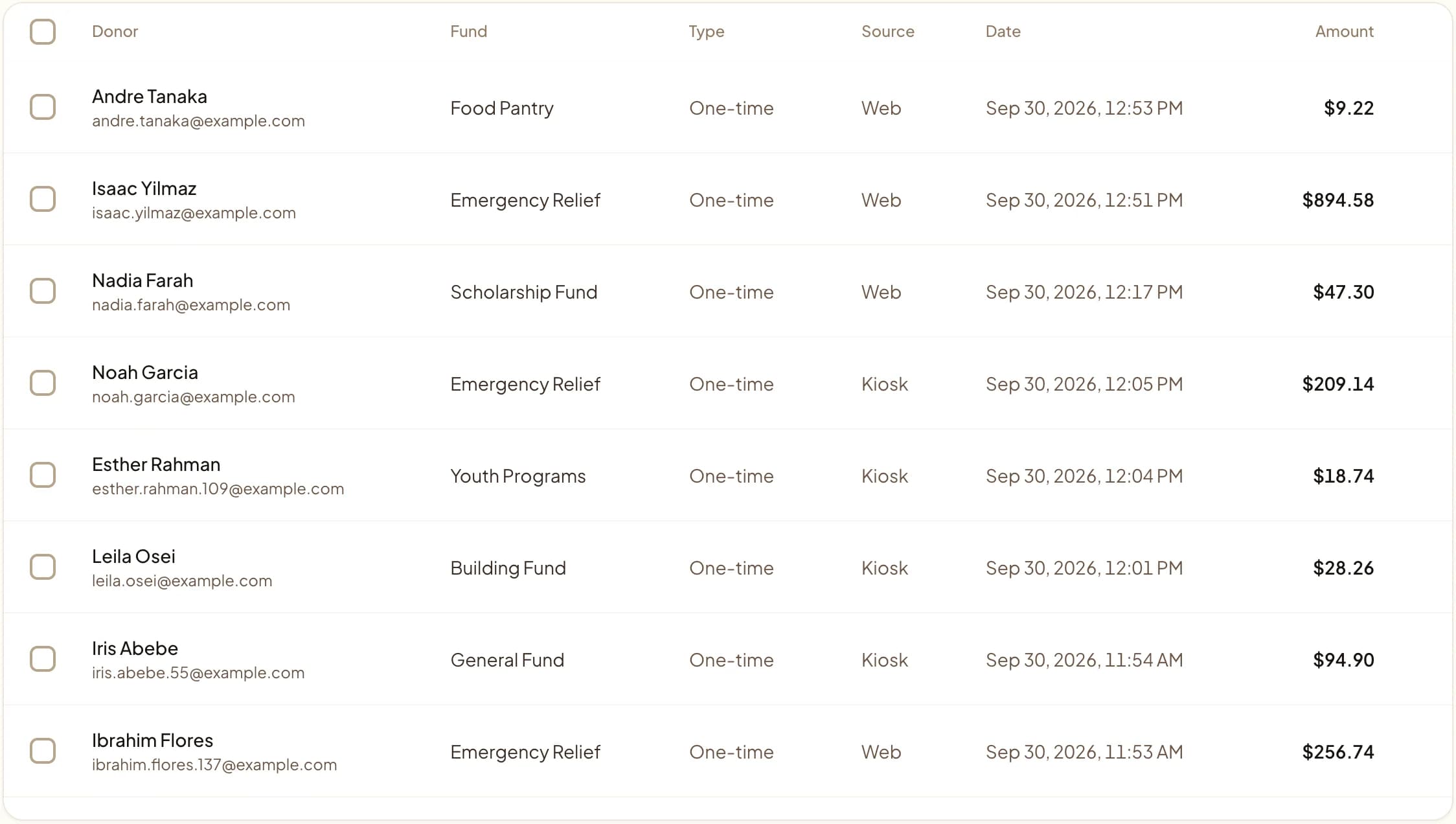
Web, kiosk, and QR gifts land in one dashboard.
Last updated July 2026 by Akif
Quick answer
To add a donation form to Weebly or Square Online, drag an Embed Code element onto the page and paste Givebear's two-line snippet. The form may preview blank in the editor and appear once the site is published. Custom embed code needs a paid Weebly plan.
Key takeaways
- Use the site-wide header code box if you want the script available on every page.
- Unlike Square's built-in Donations item, the Givebear form supports restricted funds, recurring gifts, and receipts that name the fund.
Who this is for
- Nonprofit and church web volunteers whose site was built on Weebly and has since been migrated into the Square Online editor
- Treasurers who currently receive Square Online sales reports with donations mixed into general revenue and no fund-by-fund breakdown
- Small organizations already paying for a Square Online plan that includes custom code, who want a real donation form without leaving the builder
- Anyone on the free Weebly or Square Online plan who needs a working donate button now and can route it to a hosted giving page
How do you embed the form in the Square Online and Classic Weebly editors?
In Square Online, go to your Square Dashboard, open Online, then Website, and click Edit Site. Open the page where the form belongs, click the + (Add) control where you want it, and choose the Embed code section or item (sometimes listed under Embed). Paste both Givebear lines into the code box, click outside the box or Done, then Publish. The form will not render inside the editor (see the gotcha below); confirm it on the published URL.
In the Classic Weebly editor, open the Build tab, find the Basic group in the element sidebar, and drag the Embed Code element onto the page. Click the element, choose 'Click to set custom HTML' and then 'Edit Custom HTML', paste the same two lines, and click anywhere outside the element to commit. Publish the site. The element accepts the div and the script together, so there is nothing else to configure.
Almost everyone editing a 'Weebly' site today is really editing Square Online, since Square bought Weebly and now migrates Classic sites into that builder. Either way, the tool you need is the same: the Embed Code element. A Weebly donation form from Givebear is exactly two lines pasted into that element, a div carrying data-givebear-embed and your organization ID plus the async givebear.js script, with no app to install from a marketplace and no developer ticket. The SDK mounts on any host page, so the form on your Weebly site is the same form you would get on a hand-coded site.
Square Online ships a built-in Donations item, but it treats every gift as one undifferentiated revenue line: no restricted funds, no recurring schedule tied to your funds, and no automated receipt that names the fund the donor chose. Givebear's two-line embed adds all of that, and you can swap data-givebear-embed for data-givebear-button (a modal donate button) or data-givebear-card (a card with suggested amounts) without touching any other code.
The one real catch on this builder is the plan tier: custom embed code is a paid Square Online feature, so on the free plan you point your donate button at a hosted Givebear giving page instead of embedding inline. The hosted page costs nothing extra on any Givebear plan; Givebear charges a flat platform fee from 1.9% to 5.9% depending on plan (one rate online, at kiosks, and on memberships), plus Stripe card processing at cost, with no setup fee and no monthly minimum. For in-person giving, the same Givebear organization also drives a lobby donation kiosk, so a tap in your foyer lands in the same ledger as a gift through the Weebly form.
Per-page element versus the site-wide head code box
For a donate button that appears on every page, it is tempting to use Square Online's site-wide custom code under Settings. Be careful: the header code box accepts only script, noscript, and meta tags and silently strips anything else, so the Givebear div (the mount point) will not render there. Keep the div on the page inside an Embed Code element; the script line can either ride along in that same element or load once from the site-wide head box.
The simplest reliable pattern is to keep both lines together in one Embed Code element on each page where the form should appear, and copy that element to reuse it. The givebear.js script is async and safe to load more than once, so if it ends up on several pages the widgets still mount correctly and the script work is not duplicated.
Two Weebly gotchas: paid-plan custom code and the blank editor preview
Custom embed code is a paid-plan feature on Square Online. On the free plan the Embed Code element and custom code area are not available, so the inline form cannot mount: use the hosted fallback by pointing your existing donate button at a hosted Givebear giving page. Upgrading to a Square Online plan that includes custom code unlocks the Embed Code element, after which the two-line snippet works as described.
Even on a paid plan, the Embed Code element renders inside a sandboxed iframe in the editor canvas, so your donation form usually shows a blank box or a placeholder while you are editing. That is expected, not a bug: the async script only mounts against the live DOM. Publish the site and open the live URL (or use the live preview rather than the editor canvas) to confirm the form actually appears.
Beyond the built-in Square Donations block
Square Online's native Donations item collects a payment, but it records every gift as one flat revenue line with no fund routing, no fund-named receipt, and limited recurring control. Givebear's embed adds restricted funds through data-fund-id, campaign attribution through data-campaign-id, recurring monthly schedules, and branded email receipts that tell the donor exactly which fund they supported, all from the same two lines you already pasted.
Because the Weebly form runs on the same Givebear organization as your other channels, a gift through the embedded form, a tap on the lobby donation kiosk (a one-time hardware purchase with no per-kiosk subscription), and a scan of a QR code all write to the same funds and the same donor records. The treasurer reconciles one export instead of stitching Square sales reports together by hand.
Practical use cases
- Drop an inline donation form onto your Square Online /donate or /give page through the Embed Code element so the gift completes on your domain.
- Add a fund-locked form with data-fund-id to a building fund or benevolence page so every gift classifies to the restricted fund before checkout.
- Place a compact donate button with data-givebear-button on an events or story page that opens the giving flow in a modal over your content.
- On the free Square Online plan, link the site's donate button to a hosted Givebear giving page until you upgrade to a plan with custom code.
Key features
- Two-line install pasted straight into the Weebly or Square Online Embed Code element, with no app or plugin to maintain
- Three widget shapes: inline form (data-givebear-embed), modal donate button (data-givebear-button), and a suggested-amount card (data-givebear-card)
- Restricted funds and campaign tagging via data-fund-id and data-campaign-id, beyond Square's generic Donations item
- Recurring monthly gifts and automated email receipts that name the exact fund the donor selected
- Cards plus Apple Pay and Google Pay through Stripe, with widgets inheriting your Weebly theme fonts and a data-accent-color override
- A hosted Givebear giving page fallback for the free Square Online plan, which blocks custom embed code

Common questions
How do I add a donation form to Weebly?
Why does my donation form look blank in the Weebly editor?
Can I add a donation form on the free Weebly or Square Online plan?
How is this different from Square's built-in Donations item?
Related reading
See it with your own funds.
Book a 30-minute walkthrough. No slides and no hard sell: we set Givebear up around how your organization already gives.
- Your funds, set up the way your treasurer reports them
- Where a kiosk would go, and what it costs
- The reports your board will actually see
Rather set it up yourself? Start free
Loading available times
Or open the booking page